

Desktop App
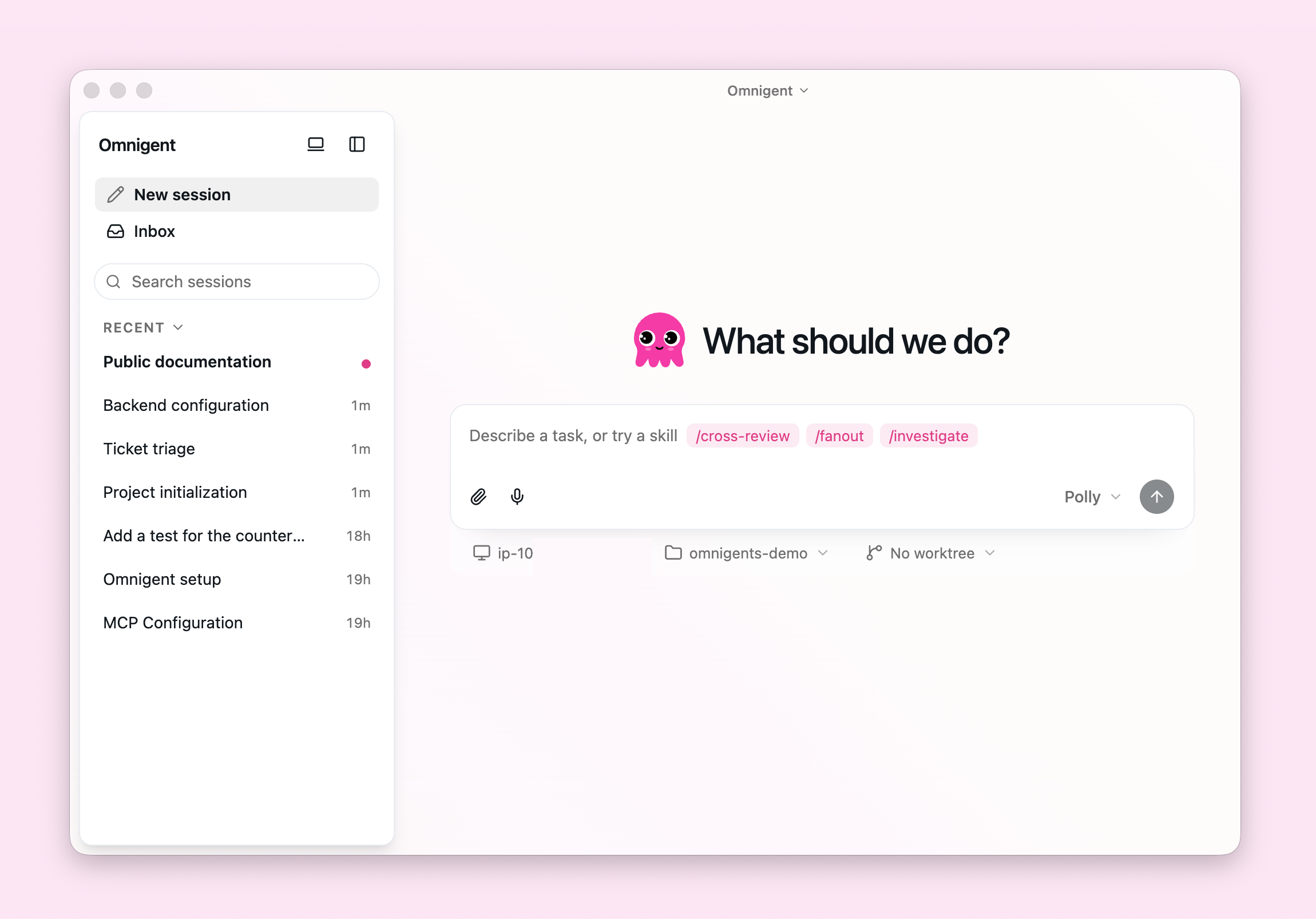
The Omnigent desktop app gives you the full web UI in a native window, plus OS-level features a browser can't provide: notifications when your agent needs attention, a dock badge showing how many sessions are waiting, and multiple independent windows.
Download for Apple siliconDownload for Intel
Why use it over the browser?
- OS notifications. Get notified when an agent finishes, asks for input, or a runner disconnects. Notifications show the first few lines of the agent's message and only fire for sessions you're not actively viewing.
- Dock badge. See at a glance how many sessions need your attention, without switching to the app.
- Multiple windows. Open additional windows with
Cmd+Nto watch multiple sessions or servers side by side. - Recent-session switcher. Hold
Ctrland pressTabto flip between your five most recent sessions — see Keyboard shortcuts. - One-click host reconnect. When a session's host is this machine and it has gone offline, the app restarts the host for you instead of asking you to run a command in a terminal.
Everything else (sessions, file editor, inline comments, collaboration) works exactly the same as the web UI.
Embedded browser
The desktop app includes an embedded browser pane your agent can drive directly. Five framework-owned tools are always available to every agent — you don't declare them in your agent YAML:
| Tool | What it does |
|---|---|
browser_navigate | Opens or navigates the pane to a URL, auto-opening the pane if it isn't open yet. |
browser_snapshot | Captures an accessibility-tree snapshot: a |
browser_click | Clicks an element by |
browser_type | Focuses an input and types |
browser_screenshot | Captures a PNG of the pane for visual inspection. Prefer
|
Refs from a snapshot are far more stable than CSS selectors against generated class
names and Shadow DOM, so the usual flow is: browser_navigate, then browser_snapshot
to see what's on the page, then browser_click / browser_type using the refs it
returned.
Because the browser runs inside the desktop window, these tools require the Omnigent
desktop app to be running with the session open. If no desktop window is subscribed,
the action fails cleanly with browser action timed out — is the session open in the Omnigent desktop app? rather than hanging.
Local network permission
Sites in the embedded pane can ask for local network access — for example a sign-in page that talks to a loopback helper such as Okta Verify. When they do, a compact Chrome-style popover appears beneath the browser toolbar, asking Allow local network access? for the requesting origin, with three choices:
- Allow once — grants access for this site visit in this pane. It survives reloads and same-origin navigation, and expires when you leave the site or close the pane.
- Always allow — remembers the decision for this exact origin across all conversations and app restarts.
- Deny — blocks the permission for this origin across all conversation browsers and app restarts.
Closing the popover, pressing Esc, or clicking outside it dismisses the request without saving a decision; the site isn't asked again until the next navigation. Only the visible, active pane can open a new prompt, but an existing Allow once or Always allow grant stays in effect while the site is in the background. HTTPS sites and HTTP loopback pages can request access; embedded subframes cannot request it on their own.
Some sign-in flows check the permission before requesting it. Because Electron can only answer such checks with allowed or denied — never "prompt" — the popover then shows Allowing will reload this page, and either allow button reloads the page so the site retries with the new answer. If a background page has already given up on its sign-in flow, bring its pane into view and reload.
Saved choices live in the desktop app's settings.json under
browser_local_network_permissions, as a map of origin → true/false. To
reset a saved choice, quit the app, remove that origin's entry, and reopen it.
These choices don't change the pane's per-conversation cookie and storage
isolation, and camera, microphone, notifications, and all other browser
permissions remain denied.
This controls Chromium's local-network permission answers — it is not a network firewall. Not every Electron version gates every local-network fetch on this permission, and approving it doesn't bypass CORS, TLS certificate validation, or the agent's navigation policy. A local helper that rejects the site through its own CORS policy must itself be configured to allow it; the pane doesn't rewrite those headers.
Keyboard shortcuts
The desktop app supports every
web UI shortcut and adds two of
its own. Both appear in the in-app shortcuts overlay (⌘/ / Ctrl+/) only
when you're running the desktop app.
Switch recent sessions
Hold Control and press Tab (⌃Tab on macOS, Ctrl+Tab on
Windows/Linux — this chord uses Control, not ⌘, on every platform) to open a
switcher listing your five most recent sessions, ordered by last activity,
each with its agent name. While holding Control:
- press
Tabagain to move down the list, orShift+Tabto move up (the selection wraps); - release Control to switch to the highlighted session;
- press
Escto cancel and stay where you are.
The highlight starts on the session just after the one you're viewing, so a
quick Ctrl+Tab-and-release jumps back to the session you used before this
one. Archived sessions aren't listed. The gesture also works while an embedded
Browser page has keyboard focus — the app forwards it to
the switcher instead of letting the page handle it.
Open a new browser tab
Press ⌘⌥B (Ctrl+Alt+B on Windows/Linux) to open a new Browser soft tab
in the Workspace rail — the same action as + → Browser in the rail's menu,
which shows the keycaps next to the Browser row. If the rail is collapsed or
hidden behind the Terminal panel, it's revealed with the new tab selected. The
shortcut yields while you're typing in the code editor or a terminal, and is
only bound where the embedded browser is available.
Cmd+N still opens a new window; starting a new session is ⌘⌥N
(Ctrl+Alt+N). This differs from the browser web UI, which uses ⌘⇧O
(Ctrl+Shift+O); the shortcuts overlay and the sidebar's New session
button show the chord for whichever app you're in.
Prerequisites
- A running server. The server stores your sessions and serves the UI the desktop app connects to; run it locally with
omni server startor point the app at a deployed URL. - At least one runner. A runner is the process that actually executes your agent. If you have cloud sandbox hosts set up, you'll be able to launch them from the app. Otherwise, register your machine by running
omni hostfrom your CLI.
Install
| Platform | Format | Status |
|---|---|---|
| macOS | .dmg | |
| Linux |
| |
| Windows | Installer ( | Download |
Get started
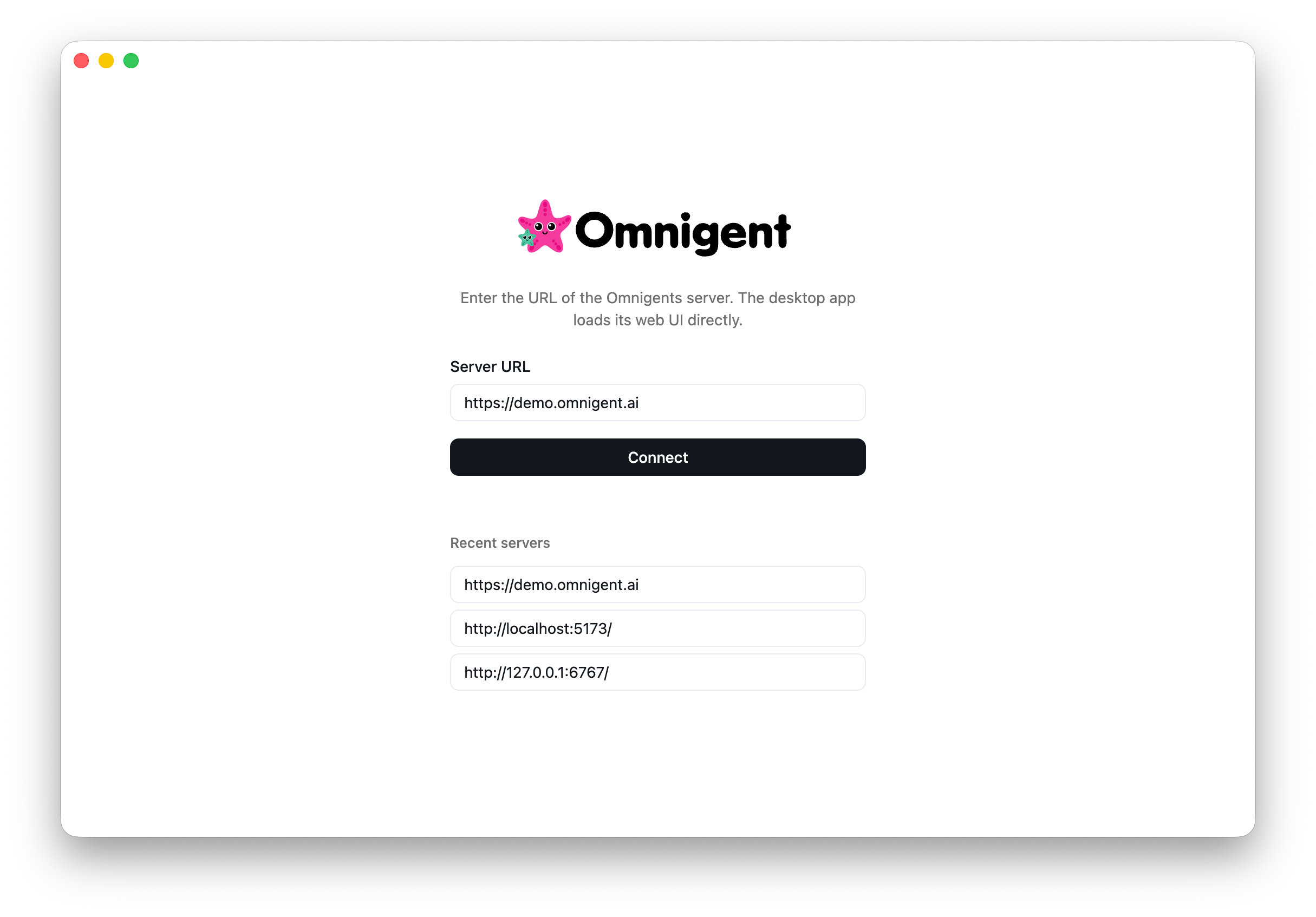
- Launch the app. On first launch, you'll see a setup screen.
- Enter your server URL.
http://localhost:6767if running locally, or your deployed server URL (e.g.https://your-app.onrender.com). - Start working. The app connects and shows the same UI you'd see in a browser.
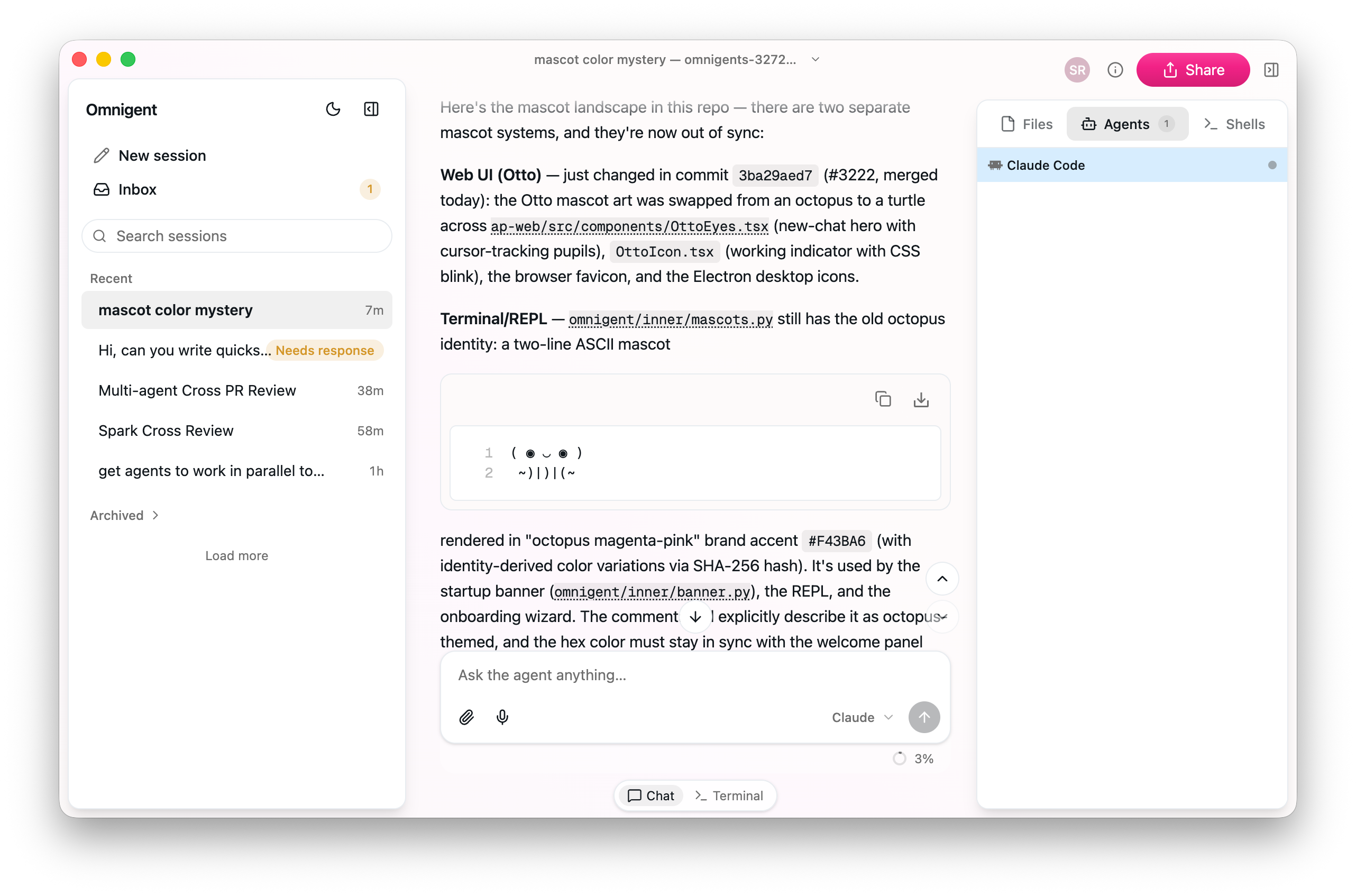
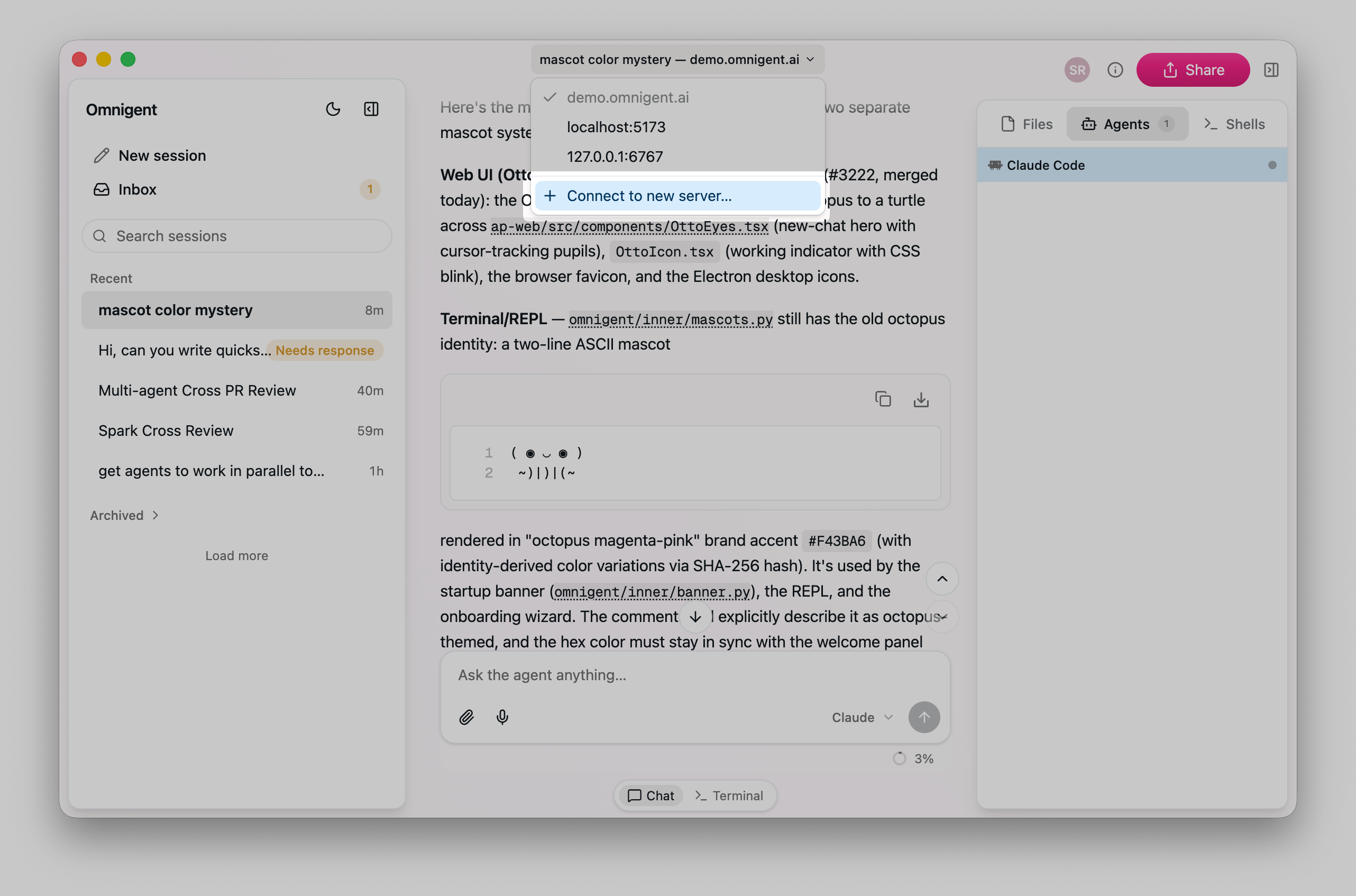
The app remembers your server URL for future launches. To change it later, go to Server > Change Server.
Work with multiple servers
Each window connects to one server. To work with multiple servers at the same time:
- Go to Server > New Window on Different Server
- Enter the URL of the second server
Notifications and badge counts are combined across all connected servers.
Preset server URLs via MDM (macOS)
On macOS, an administrator can preset the servers Omnigent Desktop offers, so users pick their organization's server from a list instead of typing it. This uses the standard macOS Managed Preferences mechanism, delivered through whatever MDM you run (for example Jamf, Kandji, Intune, or Mosyle). Each MDM has its own UI and configuration format, so follow your MDM's managed-preferences or custom-settings documentation for the exact steps. This page documents what Omnigent reads: the preference domain and the keys it recognizes.
Preference domain
Omnigent Desktop reads its managed preferences from the app's bundle identifier:
ai.omnigent.desktopKeys
| Key | Type | Required | Default | Description |
|---|---|---|---|---|
serverUrls | Array of strings | No | [] | Server URLs to offer, most-preferred first. Each must use
|
Notes:
- A schemeless host is read as
https://, andhttp://is rejected, so a plainlocalhostserver can't be preset. - Paths are preserved, so you can point directly at a workspace mount such as
https://my-workspace.cloud.databricks.com/ml/omnigents. - Entries that share an origin are collapsed, keeping the first. If any entry is an invalid type, insecure, or malformed, or if the list has more than 10 entries, the whole list is rejected.
These preferences are read only on macOS; other platforms ignore them.
Display names
To give a server a display name, add an omnigentServerName query parameter
to its serverUrls entry. Omnigent removes the parameter before connecting, so
it never reaches the server:
https://my-workspace.cloud.databricks.com/?o=123&omnigentServerName=EngineeringEncode spaces as %20, and write & as & inside a plist. Unnamed
servers show their host. The first preset server's name labels the connect
screen's Join your team button; names also label the organization's servers
in its dropdown and in the in-app server switcher.
Example (macOS managed preferences)
This is the macOS managed-preferences payload Omnigent reads. Depending on your
MDM, you either upload it inside a Configuration Profile or paste these keys into
a custom-settings form; either way, your MDM generates the surrounding profile
wrapper (the PayloadUUID, PayloadIdentifier, and similar boilerplate). Keep
the ai.omnigent.desktop domain and the key names as shown, and change the
server URLs and names to your own.
<key>ai.omnigent.desktop</key>
<dict>
  <key>Forced</key>
  <array>
    <dict>
      <key>mcx_preference_settings</key>
      <dict>
        <key>serverUrls</key>
        <array>
          <string>https://omnigent.corp.example.com/?omnigentServerName=Engineering</string>
          <string>https://my-workspace.cloud.databricks.com/ml/omnigents</string>
        </array>
      </dict>
    </dict>
  </array>
</dict>
What users see
Preset servers show up under Provided by your organization on the connect screen and in the in-app server switcher. They are offered, not enforced:
- Omnigent never connects to them automatically.
- Users can still type and join another server URL.
- A workspace path is loaded exactly as configured, rather than being reduced to its origin.
- Values are read from macOS on demand, not copied into the app's settings, so applying or removing a profile takes effect the next time the connect screen loads or the server switcher opens.
Open a session from a link
The desktop app registers the omnigent:// URL scheme, so a link can open a
specific session on a specific server the way a web link opens a page. The link
names the server by host and the session by its conversation id:
omnigent://localhost:6767/c/conv_abc
omnigent://my-workspace.cloud.databricks.com/c/conv_xyz
The link carries no http/https — the app infers it the same way the setup
screen does: http for a loopback host (localhost, 127.0.0.1), https for
a remote host. A Databricks workspace mount is discovered automatically, so you
don't include it in the link. Only /c/<session_id> links are recognized;
other paths are ignored.
Clicking a link behaves like opening a page for a known site:
- If a window is already connected to that server, the app reuses it and navigates to the session in place.
- If you've connected to that server before but have no window open for it, the app opens it in a new window.
- If you've never connected to that server, the app asks you to confirm first, since connecting to a server grants it privileges like notifications and registering this machine as a runner. Cancel is the default; only open links from servers you trust. Once you allow it, the server is remembered so future links open without a prompt.