

v0.18.0
Released 2026-10-13 · 3 min read · Omnigent maintainers
Omnigent 0.18.0 is a major release focused on making Omnigent the home base for all of your agent work, from reviewing code wherever your repos live to catching up on everything your agents have said while you were away. The session panel now reviews GitLab merge requests and Azure DevOps pull requests alongside GitHub, a new omnigent agent add command installs reusable custom agents that follow you across hosts, Settings → Harnesses shows you exactly what each harness loads at startup, and a redesigned Inbox with All, Unread, and Awaiting response tabs makes it easy to find the replies that need you.
1. GitLab and Azure DevOps review in the session panel
Not every team keeps its code on GitHub, and until now that meant the session panel's review workflow only covered part of the picture. Omnigent 0.18.0 brings GitLab merge requests and Azure DevOps pull requests into the session panel with the same treatment GitHub pull requests get: checks, comments, and diffs, all right beside the conversation that produced the change.
Tracking is automatic. When an agent creates or updates a merge request or pull request during a session, Omnigent picks it up and shows it in the panel, so you can review what the agent shipped, read the discussion, and watch checks land without leaving the session or switching between three different code hosts.
Learn more in the Tracked pull requests.
2. Reusable custom agents with omnigent agent add
Custom agents are most useful when you can reach for them again and again, not just on the machine where you first wrote the config. Omnigent 0.18.0 adds a small CLI for exactly that: run omnigent agent add to install a reusable custom agent, omnigent agent list to see what you have installed, and omnigent agent remove to clean up the ones you no longer need. If you built an agent with Create custom agent, you can import its bundle directly.
Once installed, an agent stays in your new-session picker across hosts, so the same agent you tuned on your laptop is one click away when you start a session on a shared server or a cloud sandbox.
Learn more in the Custom Agents.
3. Harness inspection in Settings → Harnesses
When an agent behaves unexpectedly, the first question is usually "what did this harness actually load?" Settings → Harnesses answers it. For each harness, you can browse the MCP servers it connects to, the skills and plugins it discovers, and the startup settings it launches with, all in one place in the UI.
That makes it much faster to confirm a new MCP server or skill is wired up before you start a session, or to spot the missing plugin behind a tool call that never fires, without digging through config files on the host.
4. Inbox tabs and sidebar reordering
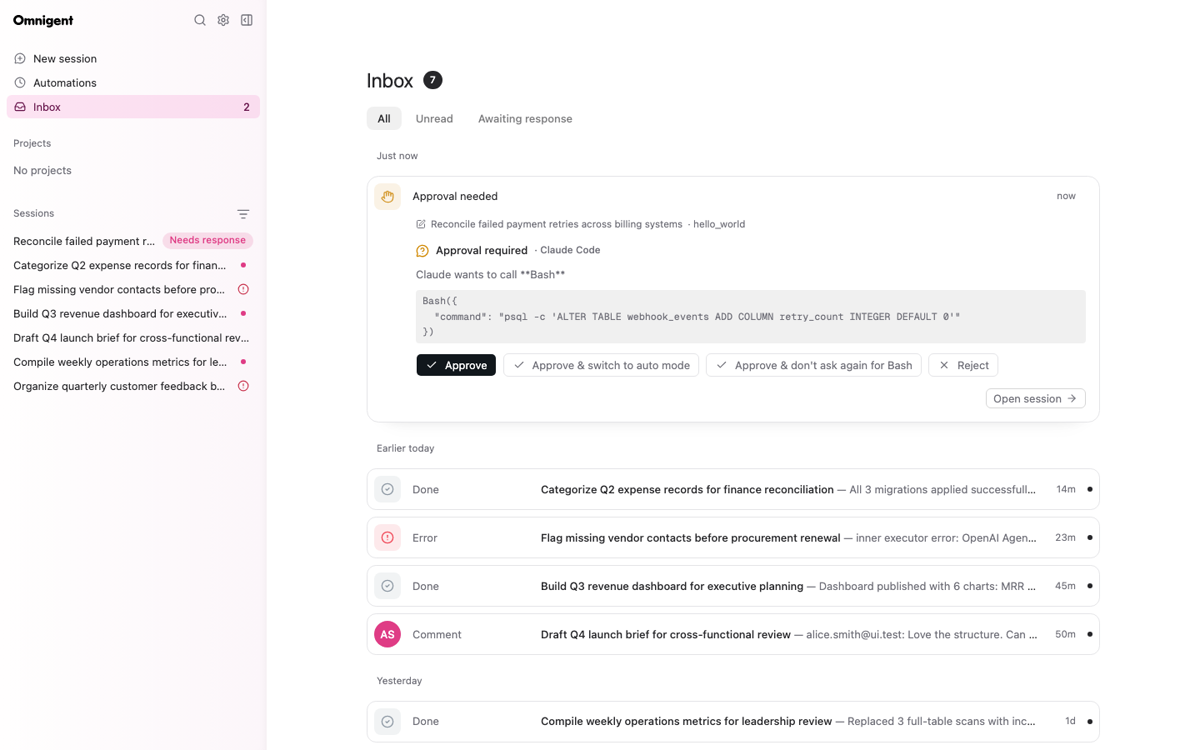
Running several agents at once means replies pile up faster than you can read them. The Inbox in Omnigent 0.18.0 is built for catching up: switch between All, Unread, and Awaiting response tabs to focus on the sessions that actually need you, and expand cards grouped by recency to read a reply in place before deciding whether to jump into the session.
The sidebar gets more flexible too. You can now drag pinned sessions to reorder them, so the sessions you care about most sit exactly where you expect them.
Full Changelog: https://github.com/omnigent-ai/omnigent/blob/main/CHANGELOG.md
What's Next
Install or upgrade Omnigent:
uv tool install --python 3.12 omnigent # or: pip install "omnigent"